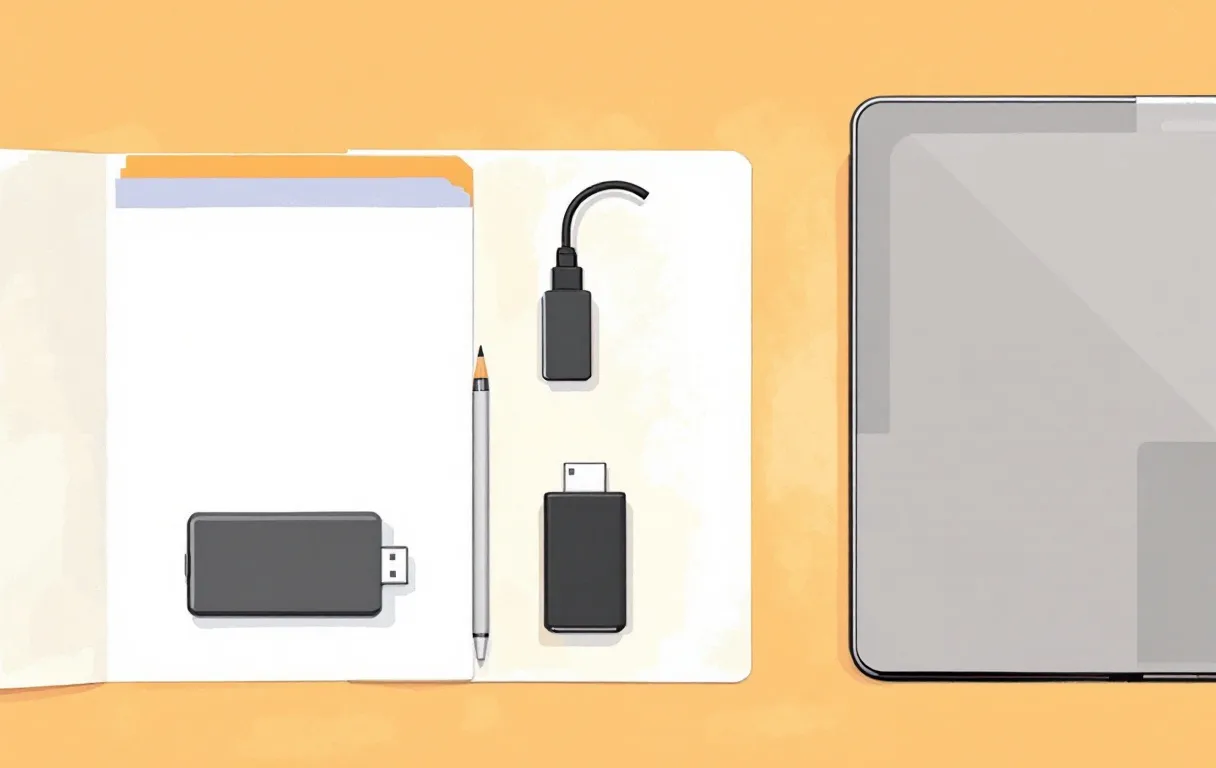

A shared computer can be useful when a phone is awkward for forms or a printer is only available at a shop. The difficulty is that the computer serves many people. Downloads, saved passwords, browser sessions and printer queues may remain after you leave unless you handle them deliberately.
Plan the session before opening a private record. Know what task you need to complete, which official website you will use and how you will take the resulting files away. A short, focused visit is easier to finish safely than an open-ended session involving several accounts and a loose collection of attachments.
Decide what must happen on the shared device
Separate tasks that need the computer from tasks you can do on your own phone or at home. You may only need printing, not account login. You may only need to upload one prepared file, not open your entire cloud drive. Reducing the scope reduces the amount of private material that reaches the shared machine.
Prepare the requested files in advance when possible. Give them clear names and verify that they open. Keep unrelated family documents off the drive you bring. A dedicated working folder is easier to inspect than a storage device containing years of photos and identity records.
If a helper will operate the computer, agree on the task before handing over files. Keep control of passwords and verification codes. Assistance with a keyboard or printer does not require somebody to retain access to your email, cloud storage or government-service account.
Check the destination yourself
Start at the official website rather than an advertisement or a search result promising faster access. Read the address carefully before entering anything. A familiar logo or page colour is not enough to identify the operator of a website.
The Bihar service directory is the starting point for its listed services. Follow its own links for the task you need. Do not use this reading guide as a place to enter application details; it does not provide government account access.
If the browser displays a certificate warning, unexpected download prompt or a request to install a remote-access tool, stop and clarify the situation. Do not dismiss a warning merely to finish quickly. A shared workstation may have software or settings that you do not understand or control.
Keep sign-in information private
Do not ask the browser to save your password. Watch for the prompt after signing in and decline it. If a password manager is already open under someone else's account, avoid entering your credentials into it. A convenient autofill field may belong to a previous user.
Enter a verification code only into the intended service yourself. An OTP is not an instruction to share the code with a helper, caller or person claiming to speed up the application. If a code arrives for an action you did not request, pause rather than treating it as a routine part of the session.
Private or incognito browsing can reduce some local browser history, but it does not make the computer trustworthy or hide activity from every system involved. Do not use it as a substitute for careful destination checks, limited access and signing out. The device can still retain downloaded files.
Download only what you need
Choose a known save location and inspect it after each download. Avoid leaving a growing collection of files in the default Downloads folder. A file you cannot find easily is also a file you may forget to remove from the shared device.
Do not open unrelated attachments from messages during the same session. Keep the task narrow. If the official service supplies a document, verify the file type and open it with the available viewer rather than running an unexpected executable or installing a browser extension offered by another page.
Copy the required output to your own storage or a private account using a method you trust. Open the copied version to confirm it is complete before removing the working copy. The final file should remain readable after the shared browser session has ended.
Printing leaves more than one possible copy
Check the print preview for page order, orientation, scale and clipping. Use one test page if the layout is unfamiliar. Repeated full print jobs can create a pile of rejected copies containing the same private information.
Collect the entire output, including blank-looking reverse pages or a cover sheet. Check the tray for misprints. Ask the operator how cancelled jobs and spoiled sheets are handled. Do not leave personal documents in a general waste basket if a more appropriate disposal method is available.
A printer may retain a job in its queue or internal storage depending on its design. You may not be able to control that on a public machine. This is another reason to print only what is needed and use a trusted service for sensitive records rather than treating every available printer as equivalent.
Finish every account session
Sign out using the website's own sign-out control, then check that returning to the page does not show the account still open. Closing a tab is not always the same as signing out. If you used more than one account, finish each session separately.
Remove files from the locations you used according to the computer owner's permitted process. Check the scanner output folder as well as Downloads and the desktop. Do not delete someone else's files while trying to clean up your own. If you cannot identify what belongs to your session, ask the operator for help without sharing new private information.
Disconnect your storage device safely and take it with you. Look around the desk for paper originals, notes and receipts. The final physical check is easy to skip when attention is on the browser, but a forgotten original can be harder to recover than a forgotten working file.
If something seems wrong afterwards
Use your own trusted device to review the relevant account's security controls. If you believe a password was saved or exposed, change it through the official account service. Review active sessions where the provider offers that feature and remove access you do not recognise.
If a private document was left behind, contact the operator promptly and explain what needs to be removed. Do not assume that deleting a file later guarantees every copy is gone. Keep a factual note of what happened and which account or record may be affected.
For cyber-safety guidance, use CERT-In's public resources. For an official application problem, use the responsible service's help route. These are different issues: a login problem, a suspected scam and an application status question may require different support channels.
Pack a session checklist
Before leaving home, prepare the minimum files, a clear task note and a way to store the output. At the computer, check the destination, decline password saving and keep verification codes private. Before leaving, collect output, sign out, remove your files and take the storage device.
The document checklist can be printed as a working sheet. Add your own non-sensitive reminders, such as checking the printer tray or copying the receipt. Do not write passwords or identity numbers on a checklist that may sit beside a shared keyboard.
A careful session is not a guarantee that a shared device is safe. It is a way to reduce unnecessary exposure while completing a specific task. If the device behaves unexpectedly or the operator insists on retaining account access, choose another route rather than treating completion as the only goal.
Choose help that respects your control
A good helper explains what they are doing and lets you inspect the result. They do not need to keep your whole document folder for a single print job. They should be able to distinguish a service charge for their own work from any official fee, without promising approval.
Keep a receipt for paid scanning or printing where available. Check the output before leaving, especially if you paid for a large batch. A low price is not useful if pages are missing, reversed or unreadable and you must repeat the session.
For recurring work, consider whether a simple home setup would reduce repeated exposure and travel. The document desk discusses equipment criteria without treating a purchase as mandatory. Sometimes a well-organised phone workflow is enough; sometimes a trusted local service remains the more practical choice.